
Setting up Two-Factor Authentication
Setting up TFA on your Firehawk-Systems account is STRONGLY recommended, and in some cases may be required
Log in into your Authentik account as created in https://knowledge.firehawk-systems.com/books/managing-your-account/page/requesting-an-account
Click on the settings icon in the top-right and navigate to Credentials.
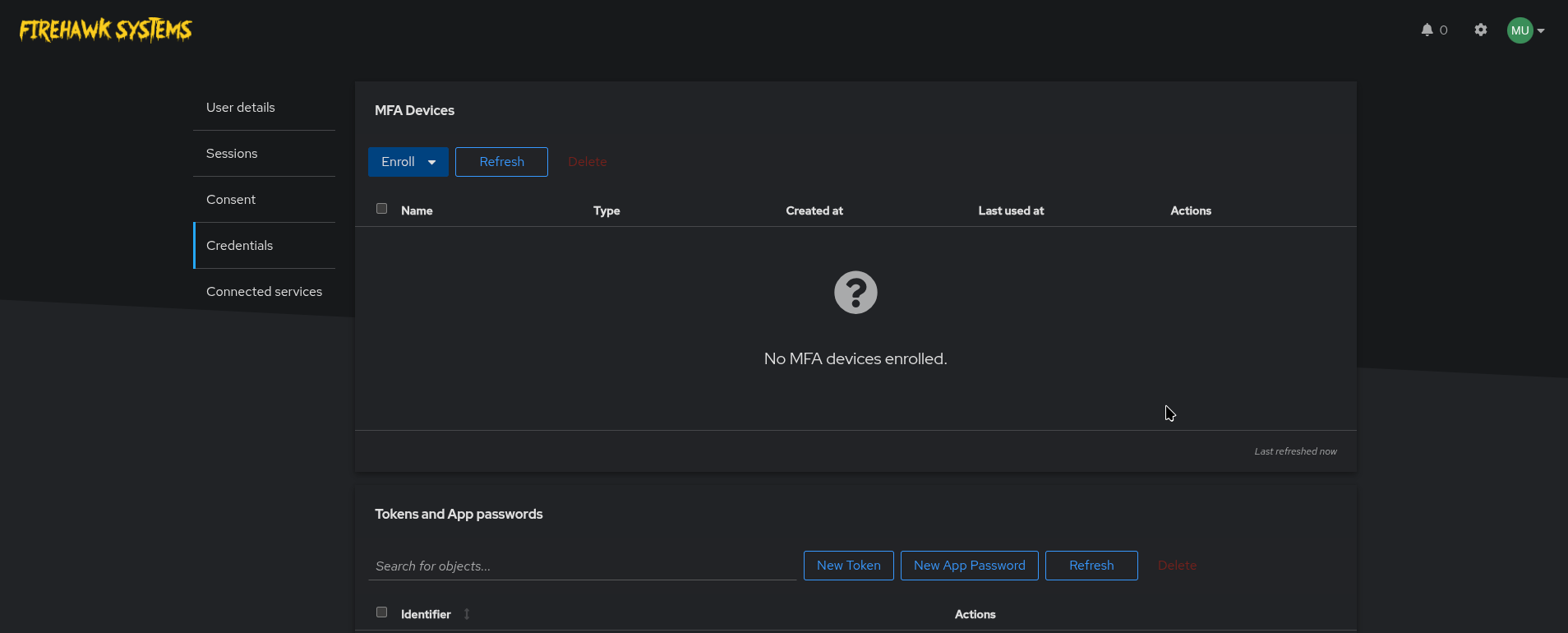
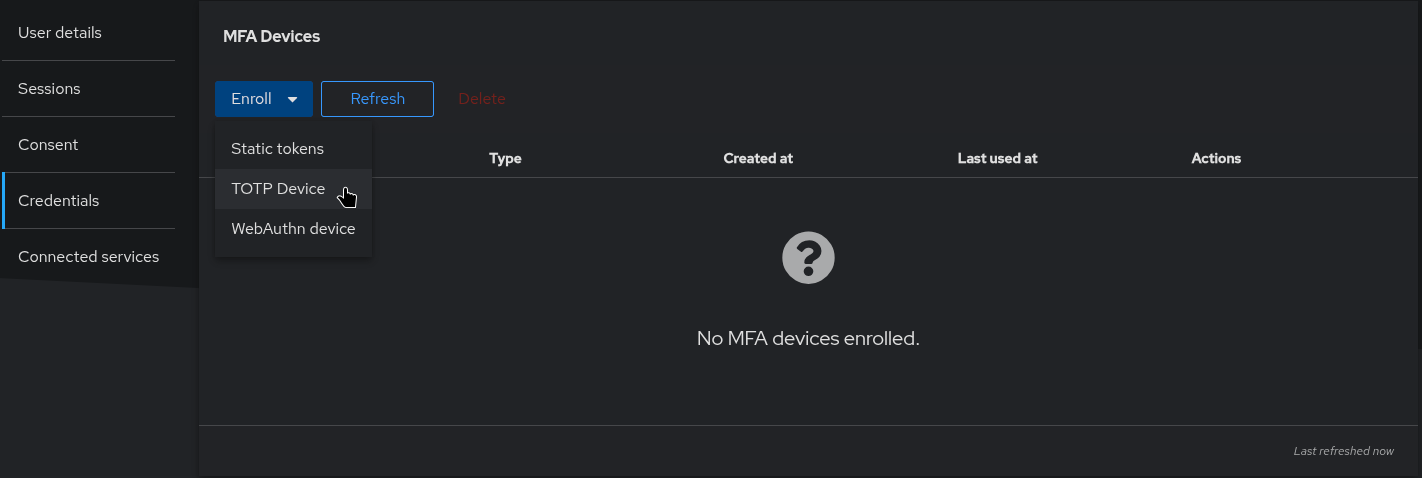
Click on Enroll. If you have a YubiKey and know how to use, select "WebAuthn device". Otherwise, select "TOTP Device"
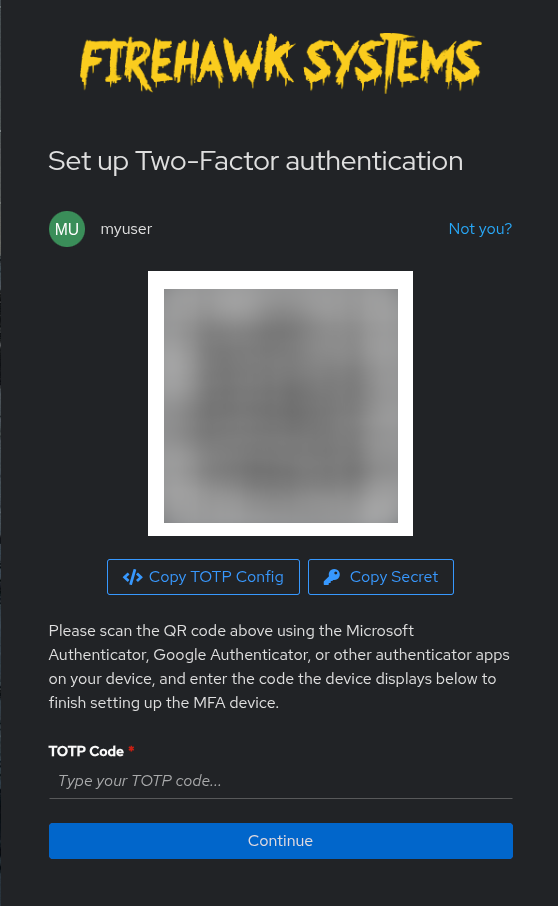
As the instructions on the page suggest, scan the QR code with any Authenticator App that supports TFA/TOTP. Our recommendation is the Bitwarden App. See here for setting up a account: https://knowledge.firehawk-systems.com/books/bitwarden/page/account-setup
When the code has been scanned, your app will generate a 6-digit code which you should enter and click "Continue"
If successful, you will be returned to the Settings page