
Requesting An Account
If you wish to use Firehawk-Systems' services, please follow this procedure.
Sending a request
Initial account creation must be performed manually by a Firehawk-Systems administrator. Approval and creation of an account may take 1-2 days.
Requests must be sent to accounts@firehawk-systems.com
Request Template
From your personal email account, send an email with the recipient, subject and body as shown below
To: accounts@firehawk-systems.com
Subject: REQUEST - Firehawk-Systems Account

Hello Firehawk-Systems,

I would like to request a account for the following purpose(s)

<2-4 sentences explaining reason for request and desired access scope>

Please create the account with the following details:

Username: <your preferred username>
First Name: <anything>
Last Name: <anything>
Email: (leave blank to use the sender address of this email)

I understand that my request may be denied for any reason, and that once my request is approved,
I must complete activation within 48 hours or my account may be disabled until I send another request.
Account Setup
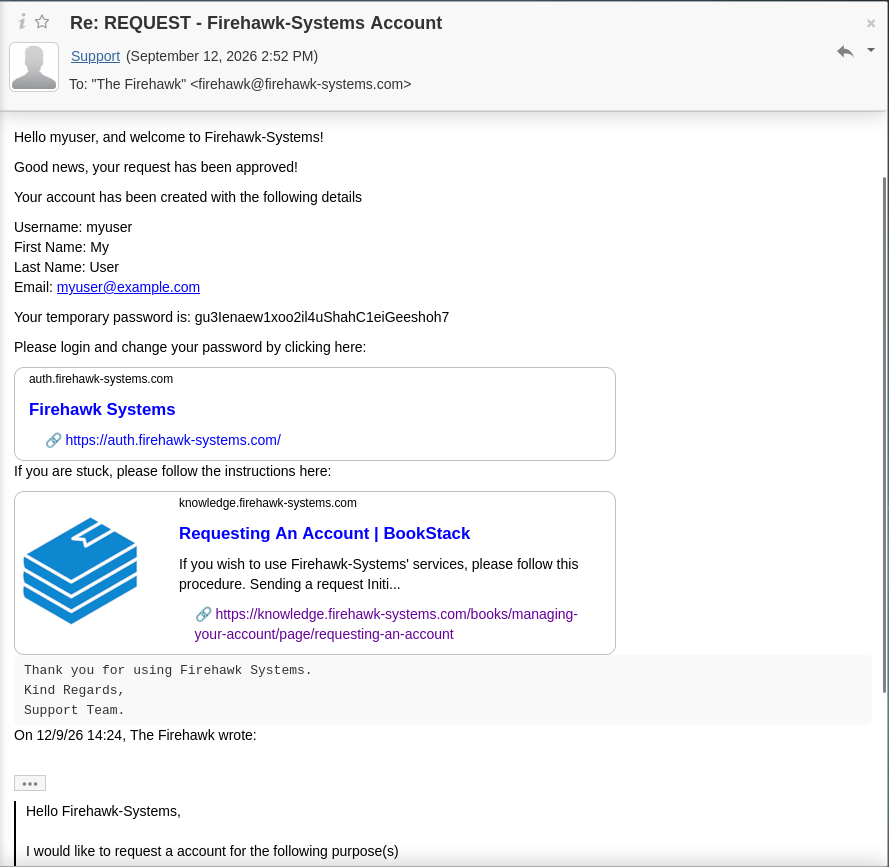
Within 1-2 days, you will receive a email response. If you request is approved, the response will contain a link to Authentik, the identity management solution used by Firehawk-Systems.
When clicking on links, always ensure the sender is who you except. Response will come from support@firehawk-systems.com
Sample Response
First-time Password Change
Unless you sent a PGP key with your request email, the temporary password is NOT safe. You MUST change it
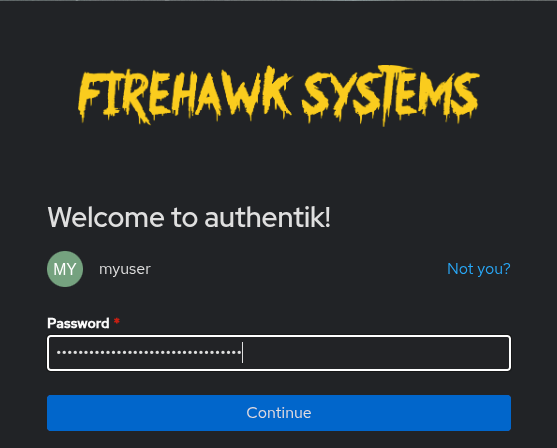
Click on the https://auth.firehawk-systems.com link in the email, it will bring you to Authentik login page. Login with the username/password provided in the email.
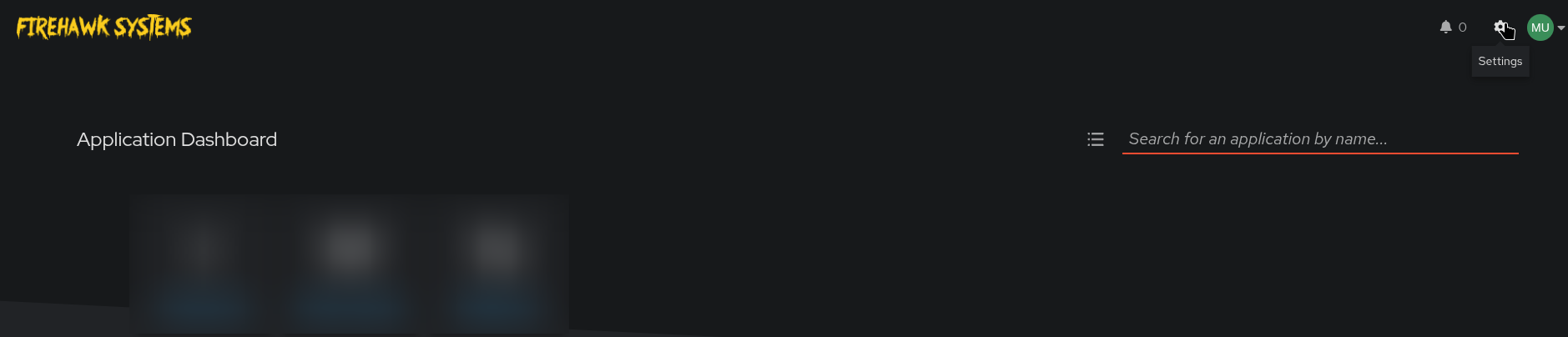
Once logged in, you'll see the dashboard. Click on the settings icon in the top-right.
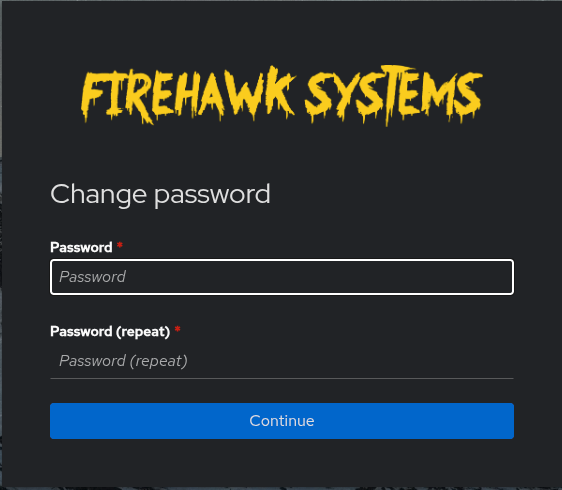
You'll likely land on the "User details" section. From there, click on "Change password"

Enter you new password:
It is strongly recommended to use a random, generated password saved in your password manager
Once successful, you'll be returned to the User details screen.