
Account Setup
Create Your Account
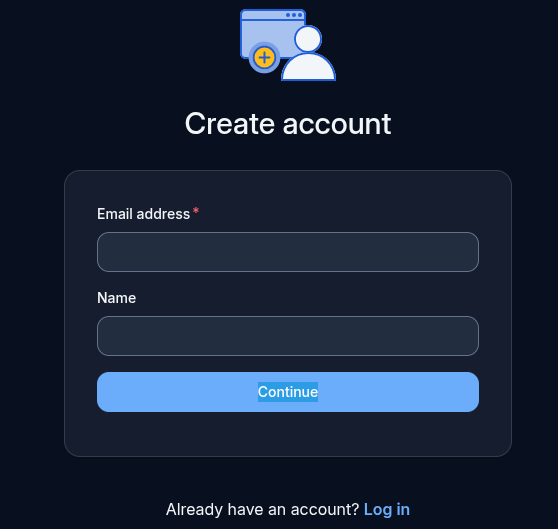
You will be sent a email containing a verification link, once received open it.
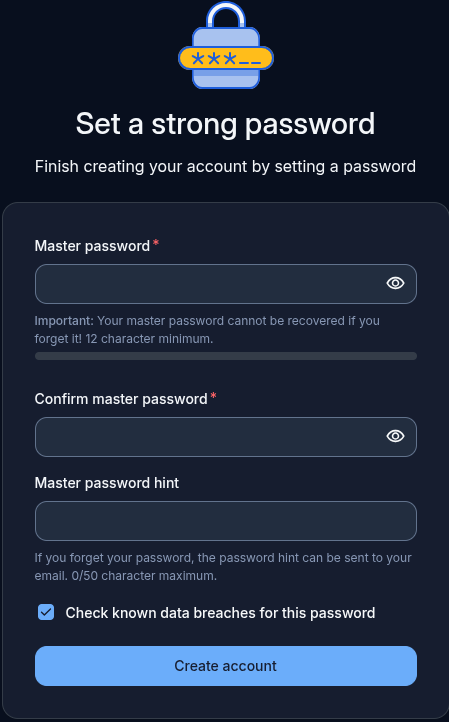
The password you enter here MUST be strong, and different to your Firehawk-Systems account
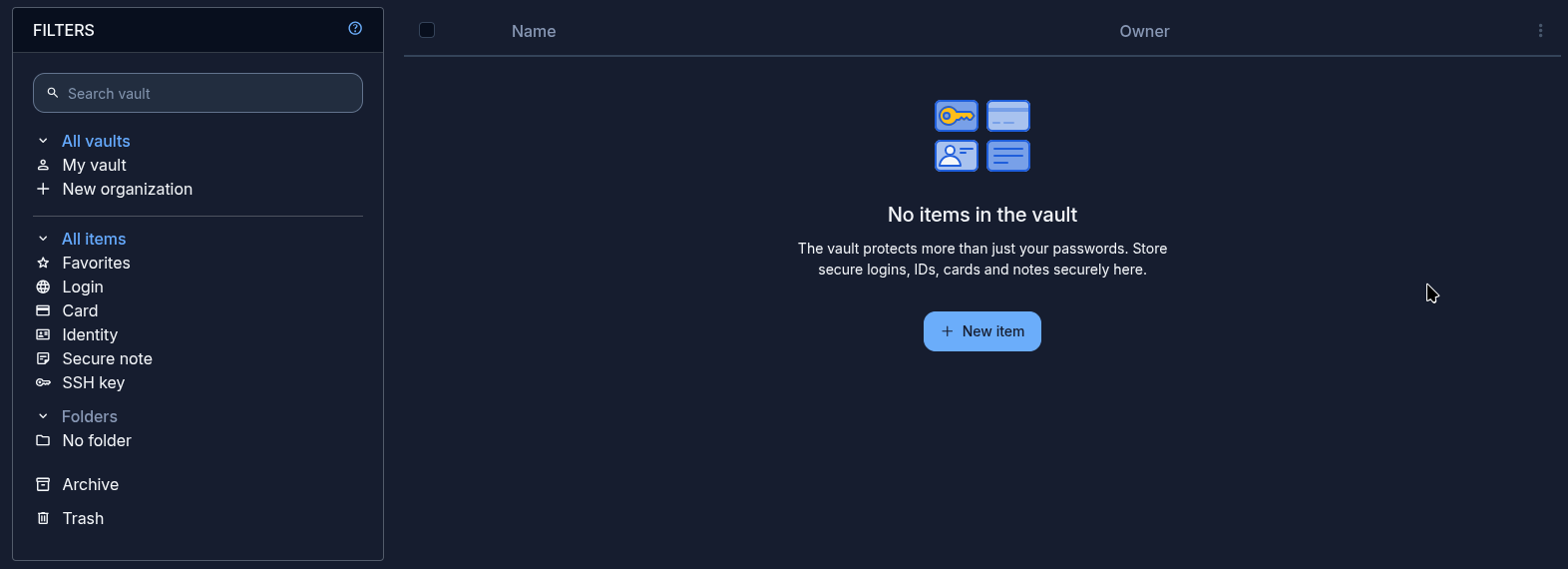
Once you create your account, you'll see the Web Vault where you can managed passwords and TFA secrets.
Importing Existing Passwords
Native browser password stores are NOT secure and shouldn't be used. Bitwarden supports importing them
You may see a popup like below where you can quickly begin the import process

Otherwise you can find the Import utility by clicking on Tools -> Import.
Select the File format for the browser/app you wish to import data from
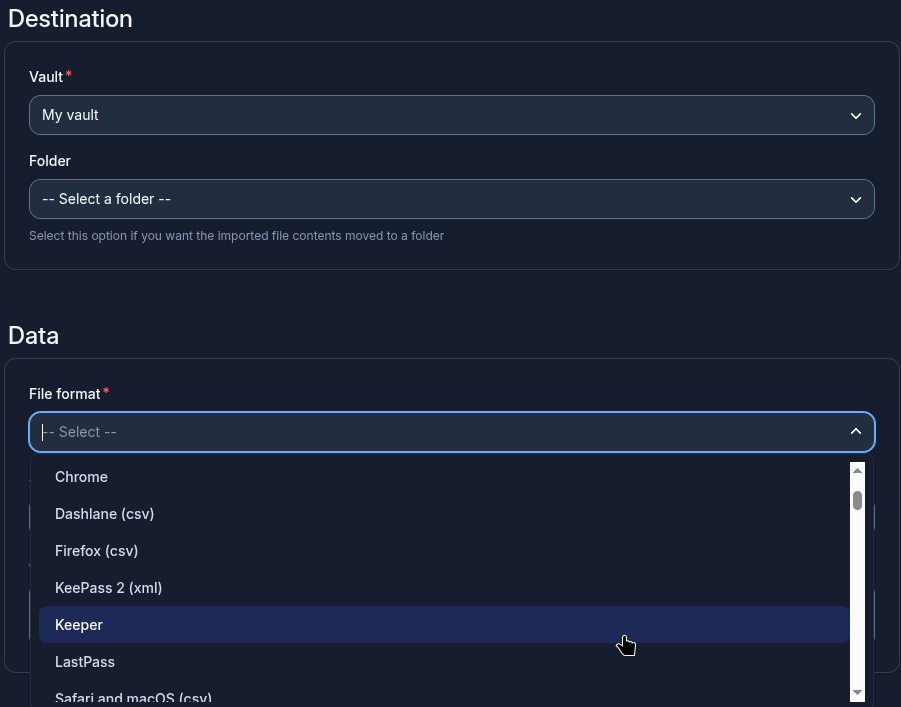
Once a File format is selected, Bitwarden will provide instructions on how to export the data. Follow them, and select the exported file
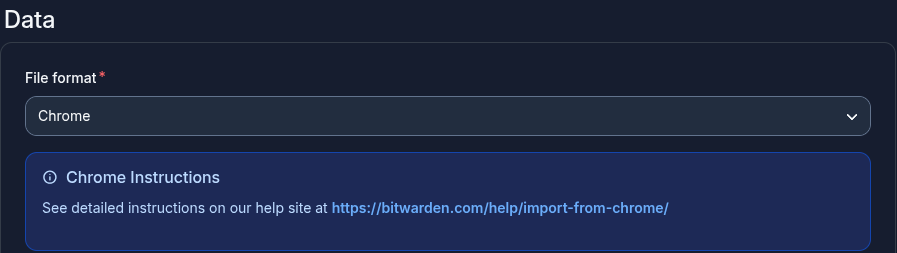
Setting up the Browser Extension
Bitwarden ships a browser extension for all major browsers. The extension carries the benefit of offline access to your password, and auto-completion of login prompts.
The Getting started popup will offer a link to install the Bitwarden browser extension

You may also visit your browser's extension store directly and search for Bitwarden
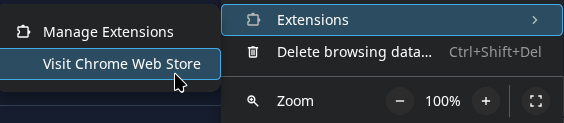
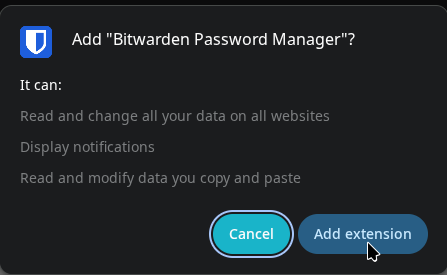
Install and confirm if prompted
When complete, you should see "Bitwarden..." in the browser toolbar. If it is not visible, you can find it in the extension list and pin it.
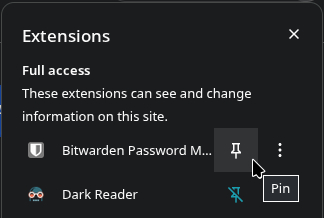
Open the Bitwarden browser extension by clicking the icon in the toolbar. If prompted to make Bitwarden the default password manager, click "Continue"
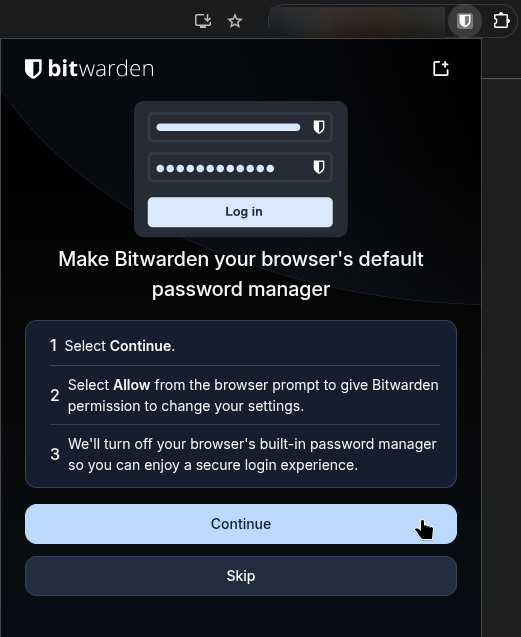
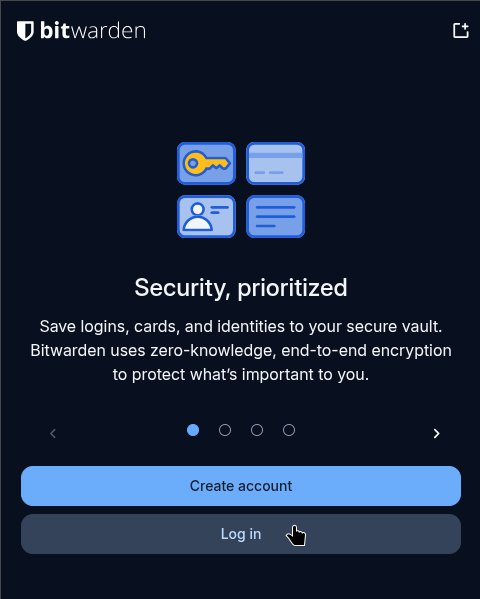
On the next screen, click "Log in"
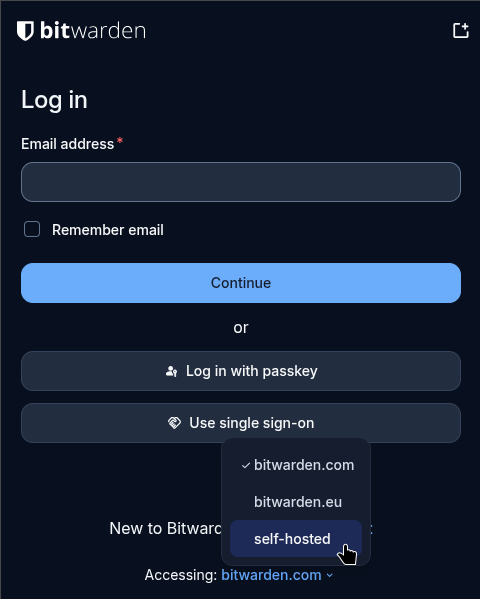
At the bottom of the popup, click on "Accessing: bitwarden.com" and select "self-hosted"
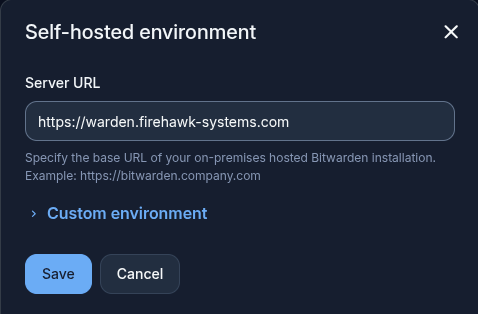
Input https://warden.firehawk-systems.com and press "Save"
With the field changing to "Accessing: self-hosted", you can now login with your email and password
Setting up Mobile App
Visit https://bitwarden.com/download/ on your mobile device to find the Bitwarden app.
This process is very similar to "Setting up the Browser Extension". Once the self-hosted URL is entered, you can login
You have completed the Bitwarden Account Setup
Passwords, notes, TFA, and files will be synchronized between devices logged into the same account, and both the Bitwarden app and browser extension provide offline access to your vaults.
Visit: for steps to secure your Bitwarden vault. You will not be given full access to Bitwarden resources until you follow those steps