Sharing
Nextcloud is particularly powerful because it provides a mechanism to share content without the recipient needing an a Firehawk-Systems account
Creating a Share
Shares from Nextcloud can take two forms. A user share, or link share. User shares must specify another Nextcloud user, while link shares can be sent to anyone.
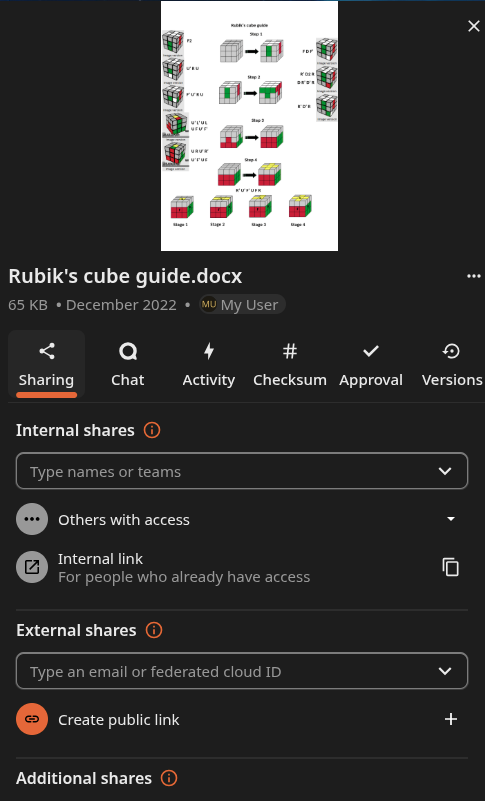
To create a share, target a file or folder and click the share icon. This will open the share management menu for that file/folder.


User Shares
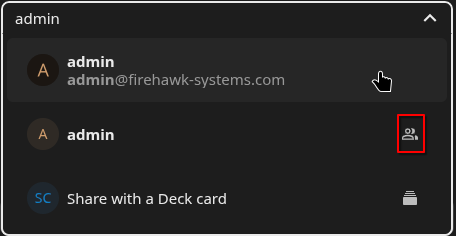
User Shares can be created by typing a user or group name in the text box under "Internal shares".
Entries with the highlighted icon are groups, those without the icon are users

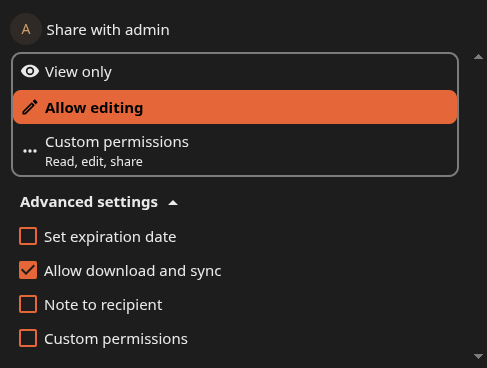
The permission of the share (Edit or read-only) can be selected with either the "View only" or "Allow editing" presets. More granular options are available by clicking on "Custom permissions". The "Advanced settings" button exposes other options like expiration of the share, allowing download of the file (as opposed to only viewing it in the website/app), or attaching a note.

Link Shares
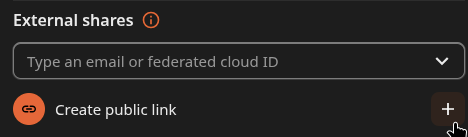
To create a publicly accessible share, click on the "+" next to "Create public link" under "External shares"

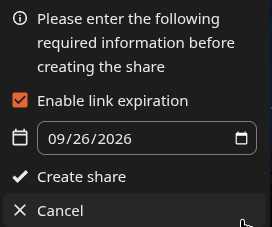
Share links have a default expiry of 14 days. You may change it, but it shouldn't be disabled unless you know what you're doing

Click "Create share" to finalize the share or customize it further. When successfully created, a tick will show and the random share link will be automatically copied to your clipboard.

Customize Link Share
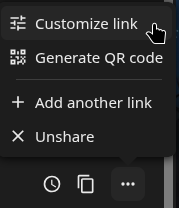
Link Shares support more customization options than User Shares, multiple share links can be created via hamburger menu
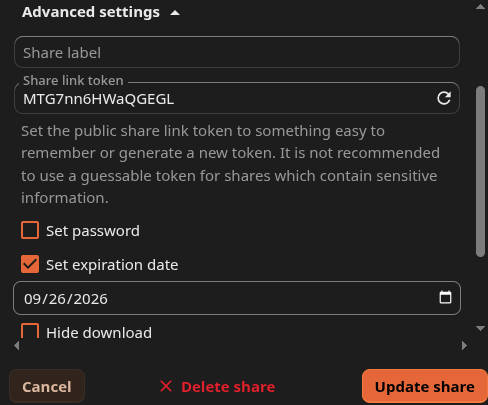
Click on the hamburger menu then "Customize link". The same permission presets as User Shares will show, but "Advanced settings" contains the interesting options.

Under "Advanced settings" , the share can be customized with the following:
- Share label
- Arbitrary annotation for the share creator
- Share link token
- Set password
- Requires a password to be entered before anyone with the link can view the content
- Set expiration date
- Hide download
- Only allow the user to view the content through the website, not download onto their device
- Note to recipient
- Same as User Shares, deliver a note to the viewer when they open the share
- Limit downloads
- If downloading of the content is intended but only to a extent, apply a download limit to the share

You have completed Sharing with Nextcloud