Access to Nextcloud requires a Firehawk-Systems account
If you don't have a Firehawk-Systems account, follow this process [https://knowledge.firehawk-systems.com/books/managing-your-account/page/requesting-an-account](https://knowledge.firehawk-systems.com/books/managing-your-account/page/requesting-an-account) To login to Nextcloud, navigate to [https://cloud.firehawk-systems.com](https://cloud.firehawk-systems.com), and use your Firehawk-Systems account credentials [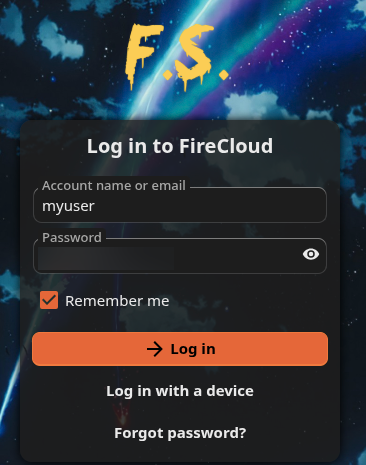](https://knowledge.firehawk-systems.com/uploads/images/gallery/2026-09/BZO5S9SV2Jj2woTL-image.png)When logging in for the first time, it may take several minutes for your account to be set up
If you cannot login, email support@firehawk-systems.com with the title "REQUEST - Nextcloud Access: <my username>"
When your account is ready, you'll be greeted with a intro popup. You can just close it. [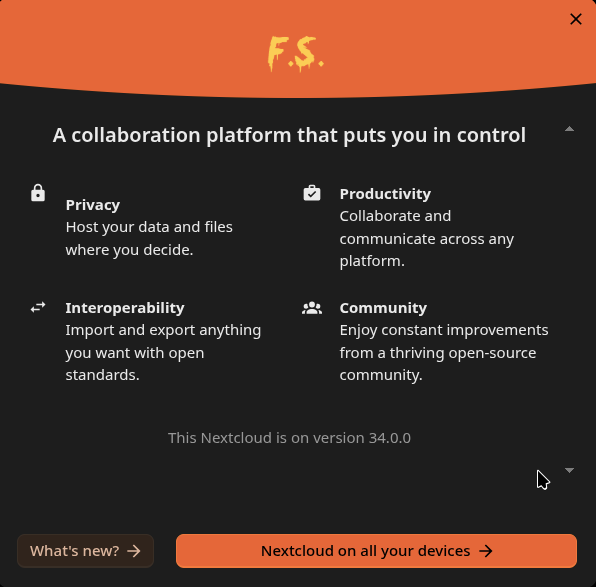](https://knowledge.firehawk-systems.com/uploads/images/gallery/2026-09/TL2o6rb199dZ8UdE-image.png) You initial set of files will include numerous template files. You can delete them as shown below [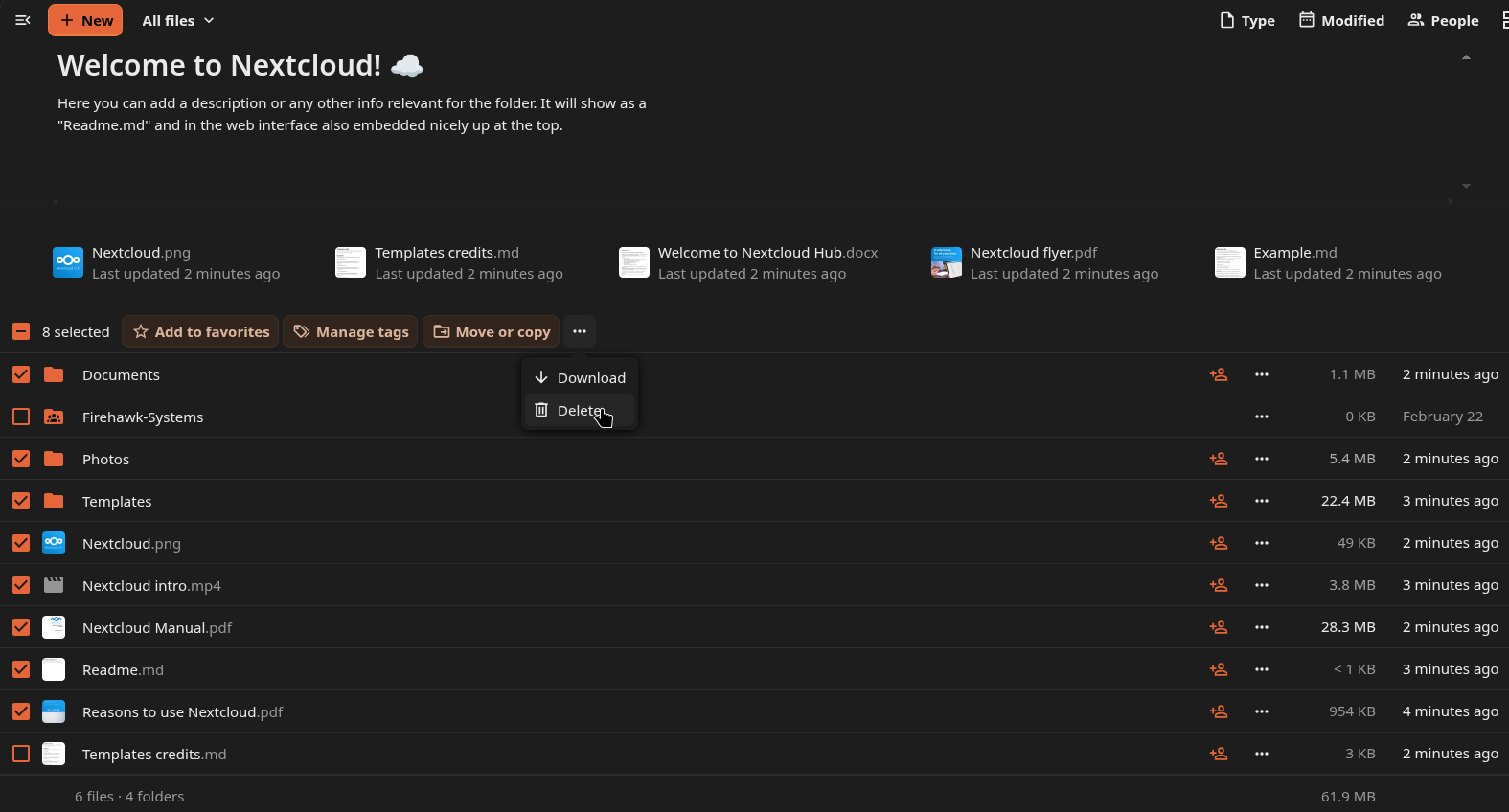](https://knowledge.firehawk-systems.com/uploads/images/gallery/2026-09/HLmiryWzAhgAkRy3-image.png) ### Creating Folders To avoid future confusion, do the following now: - Create a Documents folder - Create a Downloads folder - Create a Pictures folder - Create a Videos folder Folders can be created by clicking the "+ New" button then selecting "New Folder" [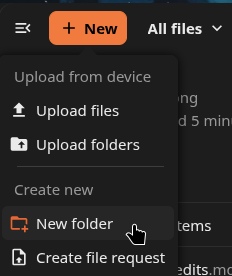](https://knowledge.firehawk-systems.com/uploads/images/gallery/2026-09/n9tg6rNd1tgkrR2L-image.png) ### Configuring Two-Factor Authentication (TFA)As Nextcloud may contain your private data, you should always secure it with TFA
Click on your user icon the click "Settings" [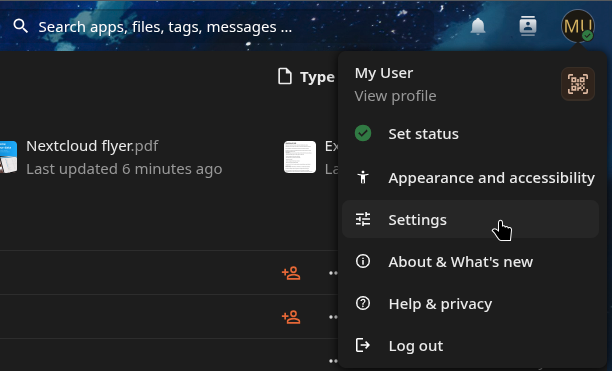](https://knowledge.firehawk-systems.com/uploads/images/gallery/2026-09/q3Bpg1aRBjumIN9Z-image.png) From the Settings menu, click on "Security" [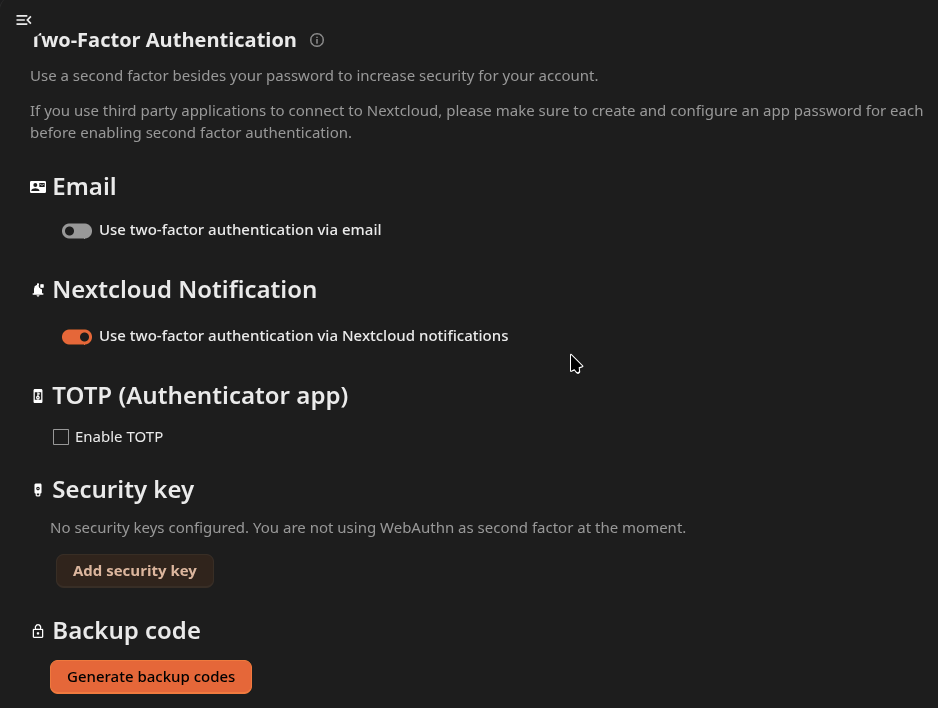](https://knowledge.firehawk-systems.com/uploads/images/gallery/2026-09/1VP6QRUb2cFngLQD-image.png) Always check "Use two-factor authentication via Nextcloud notifications". Once you set up Nextcloud on your mobile devices, you can use that to approve new logins to Nextcloud. #### Email TFA To use email as your TFA method, click on the "Use two-factor authentication via email" button. An email containing a link will be sent. When the link is opened, email TFA will be complete. #### TOTP TFAWe recommend using Firehawk-Systems Bitwarden for TOTP, see here: [https://knowledge.firehawk-systems.com/books/bitwarden/page/account-setup](https://knowledge.firehawk-systems.com/books/bitwarden/page/account-setup)
To use TOTP as your TFA method, click on the "Enable TOTP" button. A QR code will be created, which you can scan with your TFA app, then input the 6-digit code it generates to complete the setup. [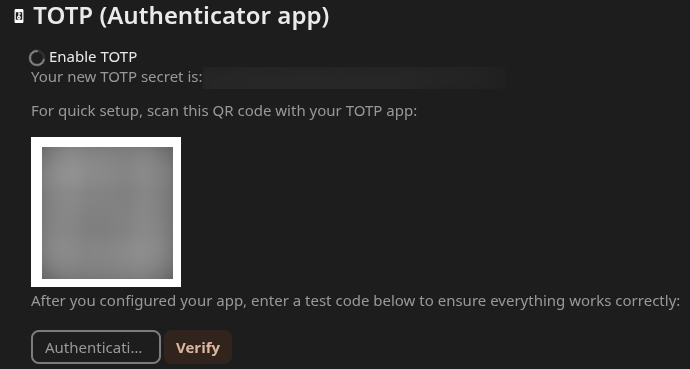](https://knowledge.firehawk-systems.com/uploads/images/gallery/2026-09/TppsxR6UhS8WumVK-image.png) #### TFA Recovery CodesRecovery codes for TFA always important, save them in a safe place
To set up TFA Backup/Recovery codes, click the "Generate backup codes" button. Save the generated codes with the "Save backup codes" button, or copying them manually. [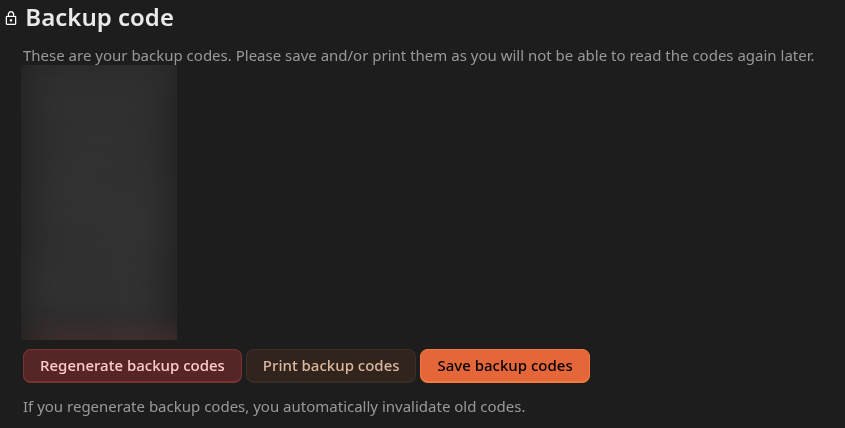](https://knowledge.firehawk-systems.com/uploads/images/gallery/2026-09/Q4qrmZ9TDZIg1Vgr-image.png) ### You have completed the Nextcloud First-time Login