Matrix-Synapse/Element
This book covers setting up a Matrix-Synapse/Element account with your Firehawk-Systems account
First-time Login
It is strongly recommended to create a Firehawk-Systems account before accessing Matrix-Synapse/Element
If you don't have a Firehawk-Systems account, follow this process https://knowledge.firehawk-systems.com/books/managing-your-account/page/requesting-an-account
Account Creation
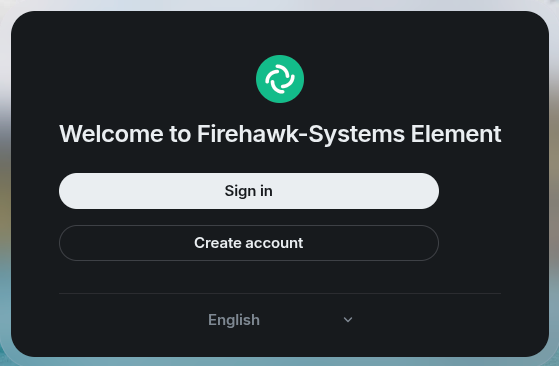
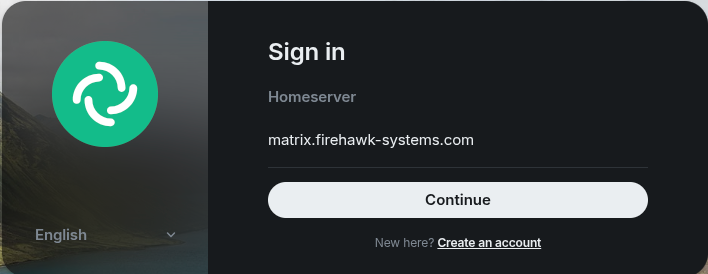
Note the Homeserver URL https://matrix.firehawk-systems.com will be required when logging in to Element X or Element Classic
After clicking Continue, you will be taken to Matrix Authentication Service at https://mas.firehawk-systems.com. Click on "Continue with Firehawk-Systems"
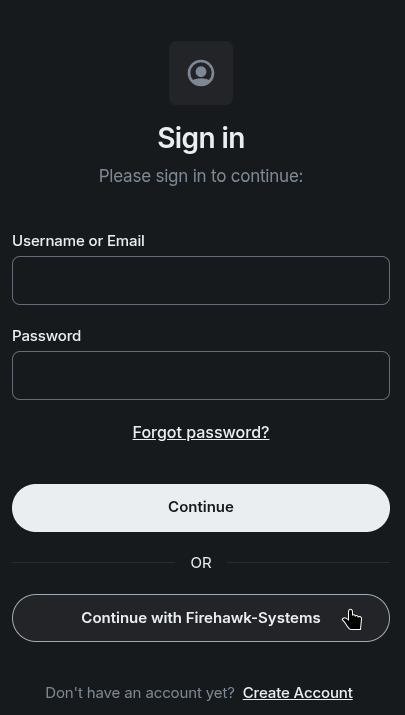
You will then be taken to Authentik login page, where you can login with your Firehawk-Systems account
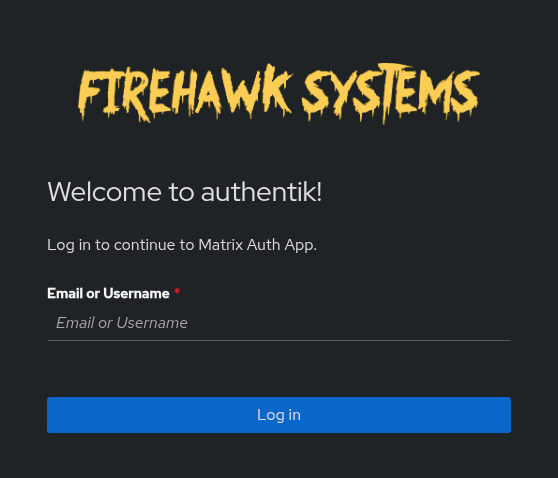
If you cannot login, email support@firehawk-systems.com with the title "REQUEST - Matrix-Synapse Access: <my username>"
The next page will confirm information and allow profile information to be set. Details from the Identity Provider are used by default.
Uncheck the "Use" box if you want to change the information
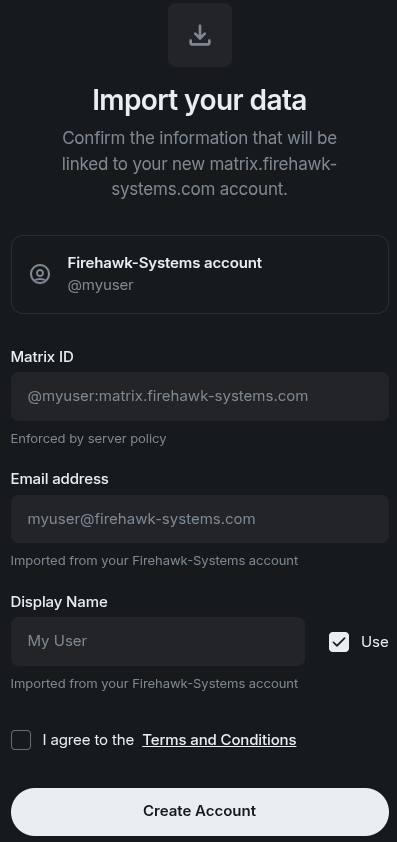
Click on "Terms and Conditions" then check the box. Do not create your account if you do not agree.
If prompted with the below page, press "Continue"
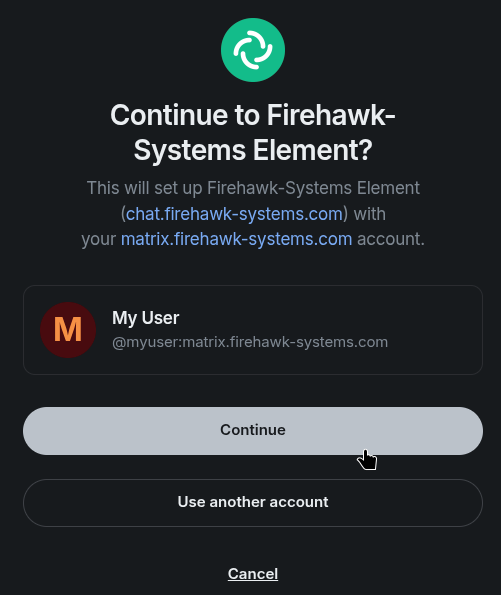
Your account setup is NOT complete yet! Keep reading
Set up Secure Key Backup
You will see a popup to "Back up your chats" - this is essential for synchronizing messages to multiple devices. Click "Continue"
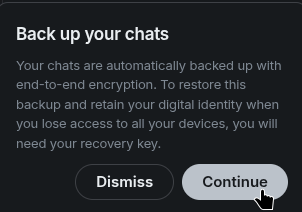
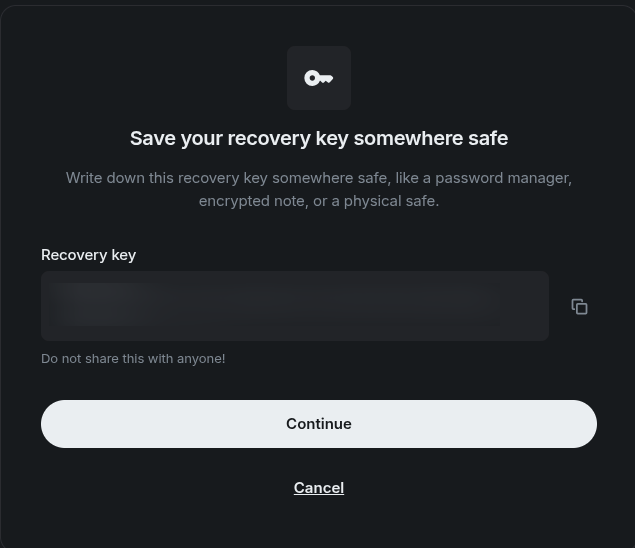
Click "Get recovery key", then click "Continue" on the next screen
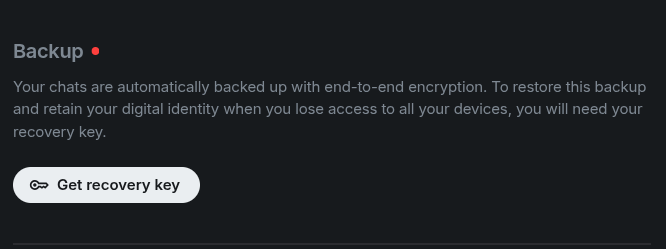
This key will be needed if you ever lose access to your last device logged into Element
Click the copy button to the right of the "Recovery key" and save it somewhere safe
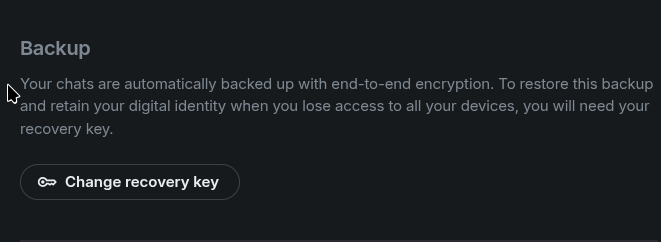
The next page will prompt you for the recovery key that was just generated. When complete, the Backup section should show "Change recovery key"
Connecting Element App
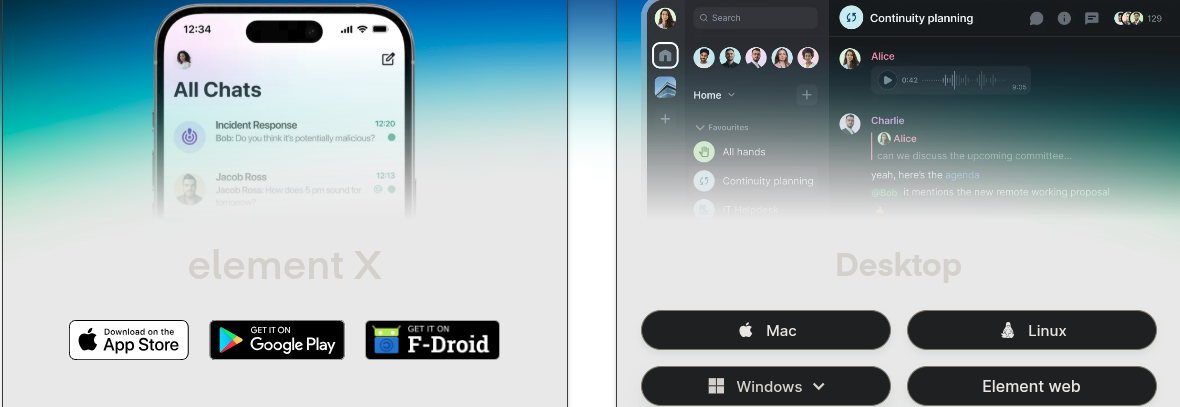
Element X
This process is easier if you have the session in Element Web from the previous step still open
Once you have downloaded Element X from the app store, open it.
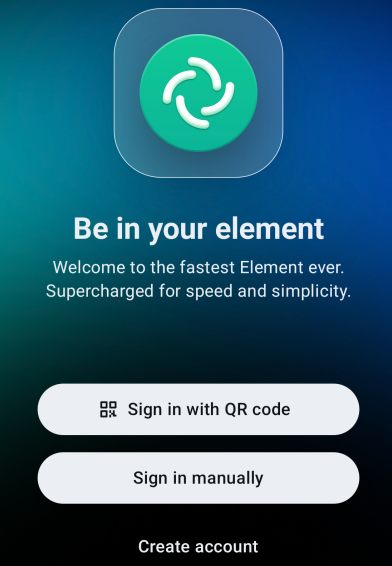
Login with QR Code
On Element Web, click on your profile, the "Link new device"
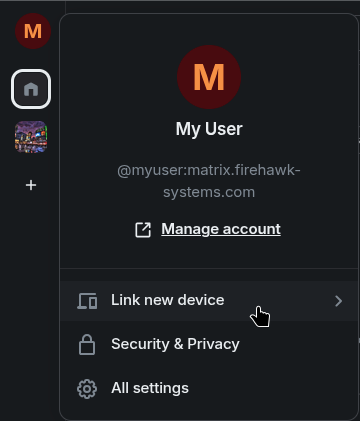
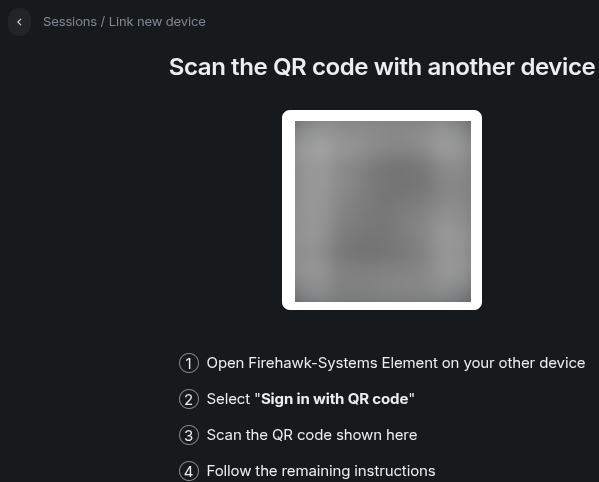
A QR code will then appear. On your mobile device, click "Sign in with QR code" then scan it
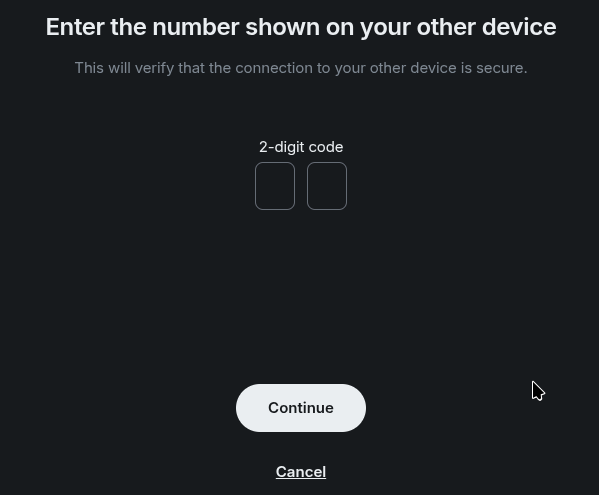
The mobile device will produce a two-digit unique code that needs to be entered
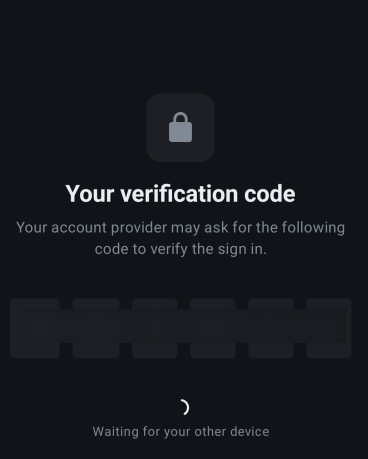
Once done, the mobile device will produce a six-character unique code that needs to be entered
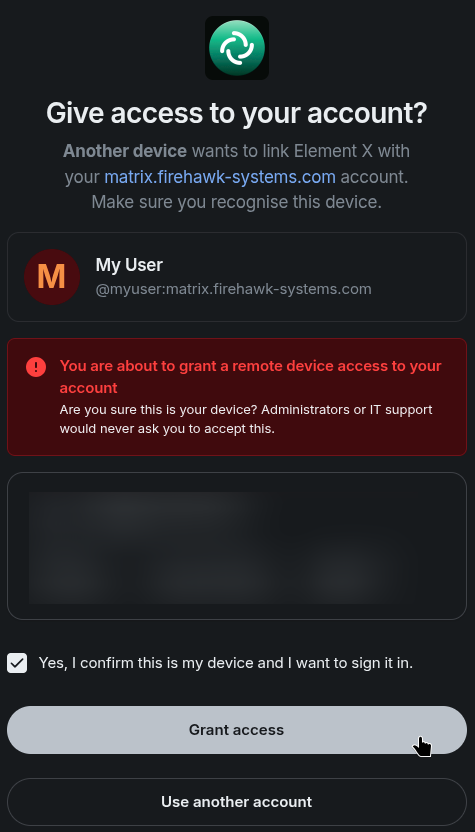
Once done, a final confirmation will be shown. Tick the box and press "Grant access"
Sign in manually
If the QR method isn't possible or too difficult, select "Sign in manually".
You will be prompted for the homeserver, type in https://matrix.firehawk-systems.com
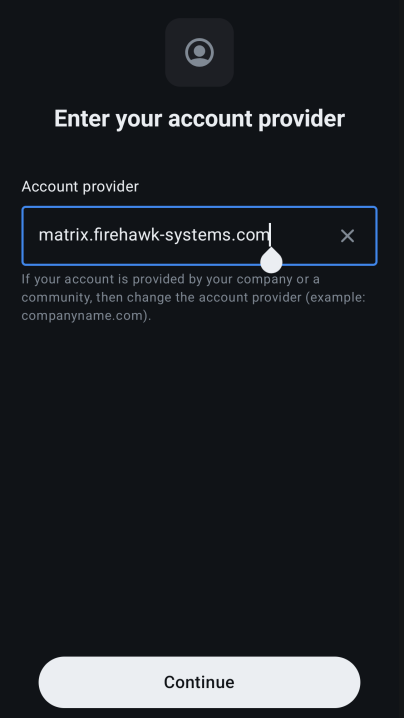
When you press "Continue", you should be presented with a screen similar to when you signed in to Element Web. Press "Continue with Firehawk-Systems" and log in to your Firehawk-Systems account.
Complete Login
If prompted with a "Help improve Element X" page, click "Not now"
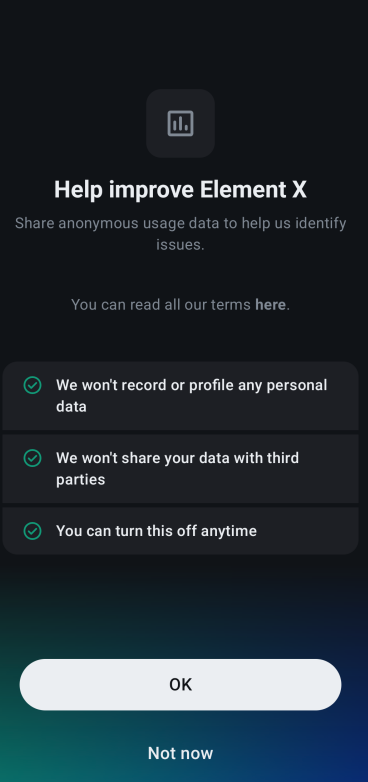
You have completed the Element account setup/login
Verifying Users
Verify a User
Matrix-Synapse/Element provides the ability to establish trust of another user's keys. This mechanism will then warn you if that person's account gets compromised and sends you messages from a session they have not verified.
Check for Unverified Sessions
From yourself
To check your own sessions, login to Element Web, Element Desktop, or Element Web. Open Settings and go to "Sessions". Element will warn your if you have a unverified session
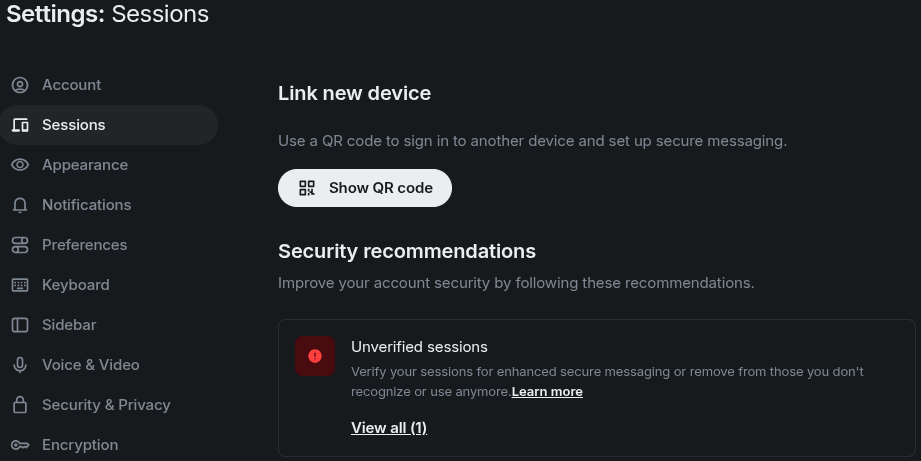
You can action this warning by scrolling down to find the exact device.
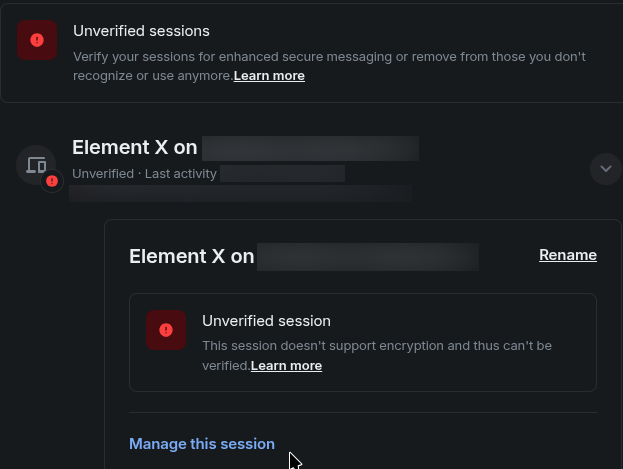
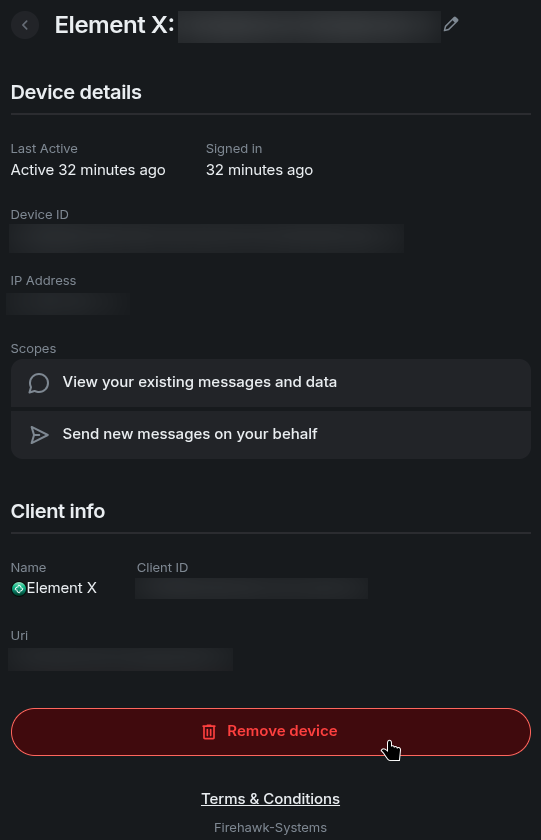
If you wish to remove the unverified device, you can click "Manage this session", then log in with your Firehawk-Systems account.
You can then click "Remove device"
From other users
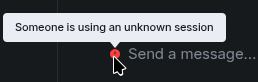
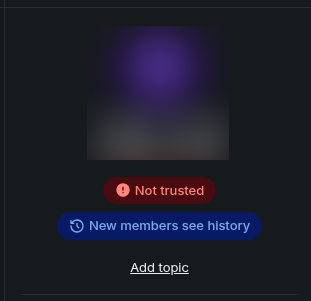
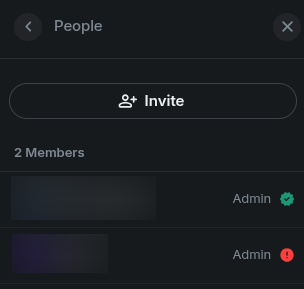
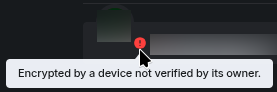
It's important to be vigilant for unverified sessions among your contacts. Element will clearly warn you if a chat contains participants with unverified sessions by a red alert shield in the following places:
Next to the message input box
In the chat detail screen
In the chat's "People" list, next to the participants who has a unverified session
And with each message from a unverified session.
Establish Trust
All new users are in a neutral trust state initially. Select a chat of a user you wish to verify
Element Web/Desktop
Open settings by either pressing the info bubble
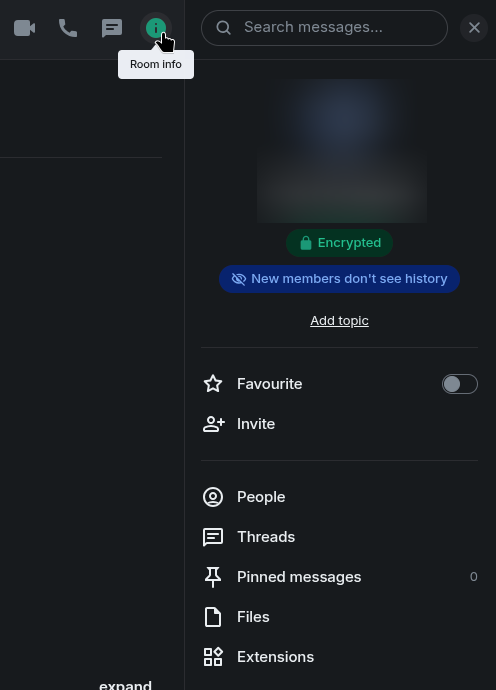
Click on "People" then click on the user's name.

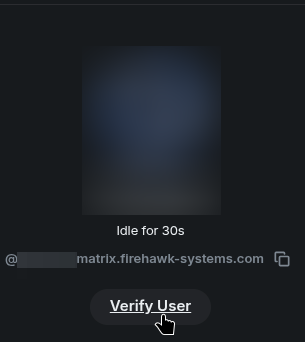
A "Verify User" button will be visible under their profile picture
Element X
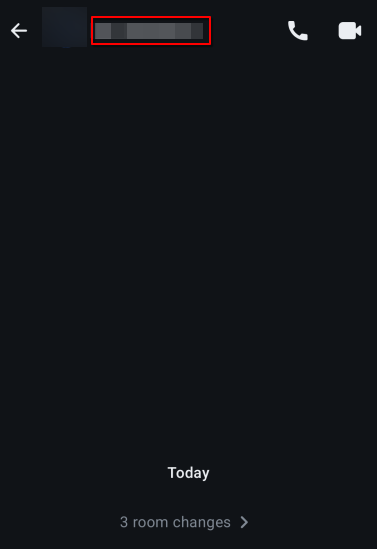
Open the settings by clicking on the chat name
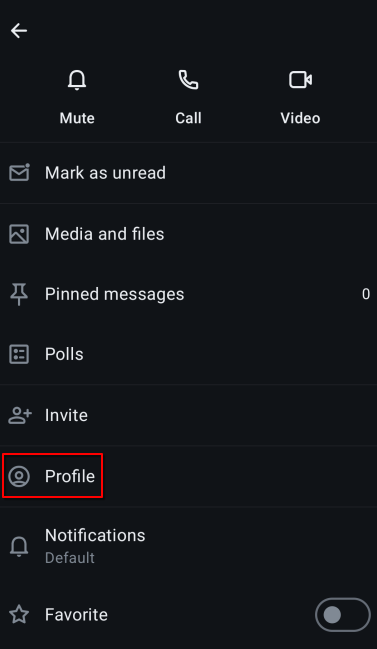
Scroll down to "Profile"
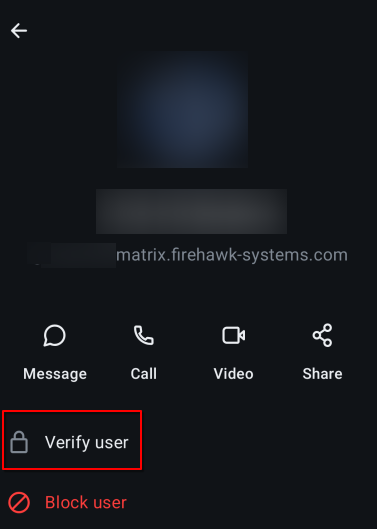
Select "Verify user"
Complete Verification
The other user will receive a verification request.
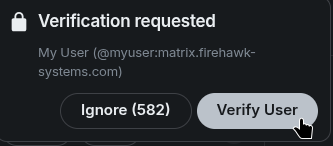
They will then be presented with supported methods of verification.
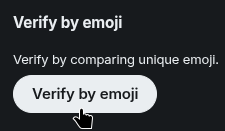
Some devices support QR-code verification, which requires the device requesting verification to scan the QR code on the other, implying proximity. Another method is emoji verification, which exchanges a key in the background and requires matching the set of emojis on each device to ensure the integrity of the exchange remained.
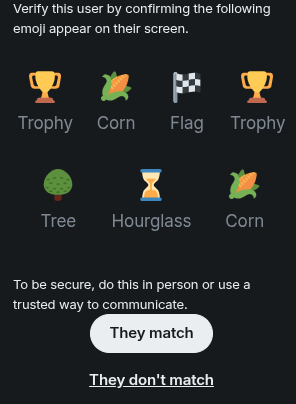
When both parties press "They match", the verification process will conclude