If you wish to use Firehawk-Systems' services, please follow this procedure.
### Sending a request Initial account creation must be performed manually by a Firehawk-Systems administrator. Approval and creation of an account may take 1-2 days. Requests must be sent to accounts@firehawk-systems.com #### Request Template From your personal email account, send an email with the recipient, subject and body as shown below ``` To: accounts@firehawk-systems.com Subject: REQUEST - Firehawk-Systems Account Hello Firehawk-Systems, I would like to request a account for the following purpose(s) <2-4 sentences explaining reason for request and desired access scope> Please create the account with the following details: Username:When clicking on links, always ensure the sender is who you except. Response will come from support@firehawk-systems.com
##### Sample Response [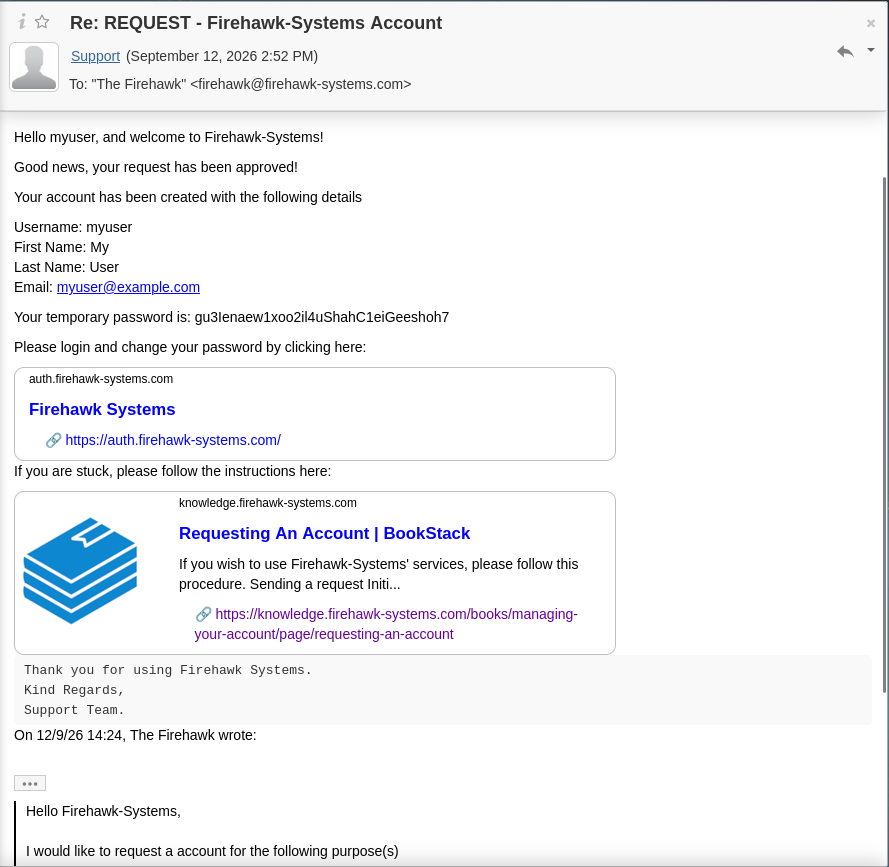](https://knowledge.firehawk-systems.com/uploads/images/gallery/2026-09/VDmbLbCSHc7icEY2-image.png) #### First-time Password ChangeUnless you sent a PGP key with your request email, the temporary password is NOT safe. You MUST change it
Click on the [https://auth.firehawk-systems.com](https://auth.firehawk-systems.com) link in the email, it will bring you to Authentik login page. Login with the username/password provided in the email. [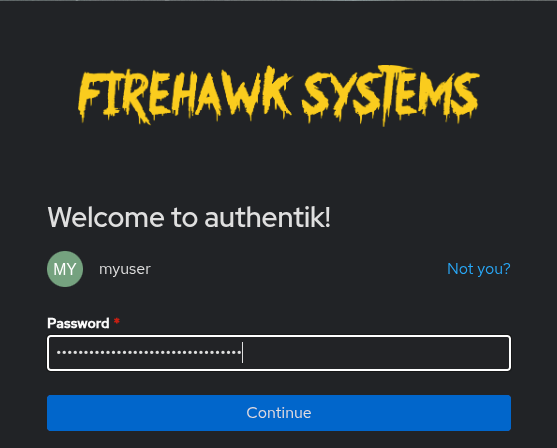](https://knowledge.firehawk-systems.com/uploads/images/gallery/2026-09/nByXYzcogDVTJPs8-image.png) Once logged in, you'll see the dashboard. Click on the settings icon in the top-right. [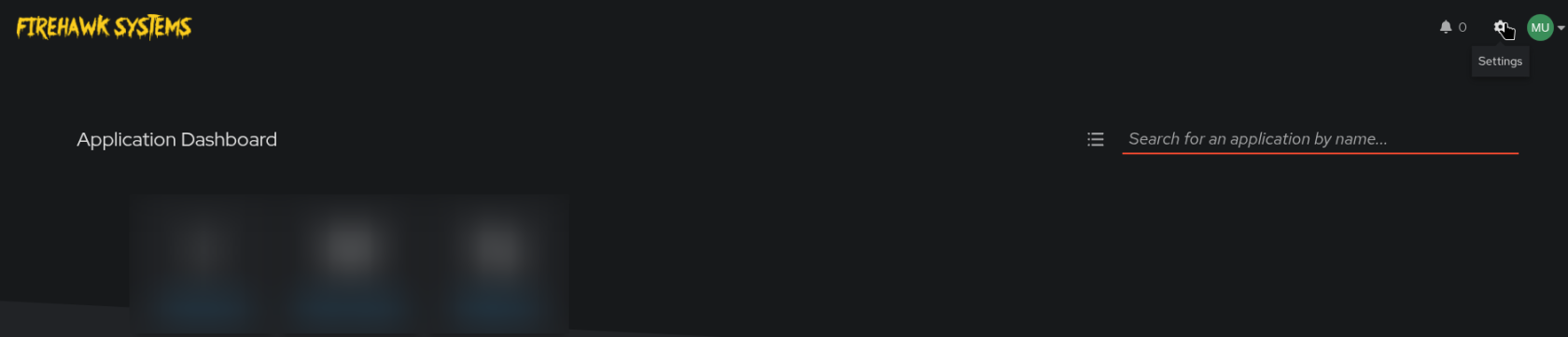](https://knowledge.firehawk-systems.com/uploads/images/gallery/2026-09/X2Q4NI2jD6jXKfsQ-image.png) You'll likely land on the "User details" section. From there, click on "Change password" [](https://knowledge.firehawk-systems.com/uploads/images/gallery/2026-09/qHD48dTnafA9VWCD-image.png) Enter you new password:It is strongly recommended to use a random, generated password saved in your password manager
[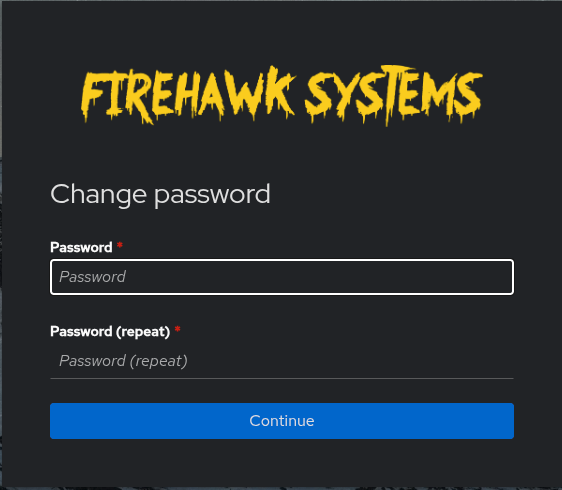](https://knowledge.firehawk-systems.com/uploads/images/gallery/2026-09/1U9u4bZlzGT7V5SQ-image.png) Once successful, you'll be returned to the User details screen. #### You have completed your first-time account setup # Setting up Two-Factor AuthenticationSetting up TFA on your Firehawk-Systems account is STRONGLY recommended, and in some cases may be required
Log in into your Authentik account as created in [https://knowledge.firehawk-systems.com/books/managing-your-account/page/requesting-an-account](https://knowledge.firehawk-systems.com/books/managing-your-account/page/requesting-an-account) Click on the settings icon in the top-right and navigate to Credentials. [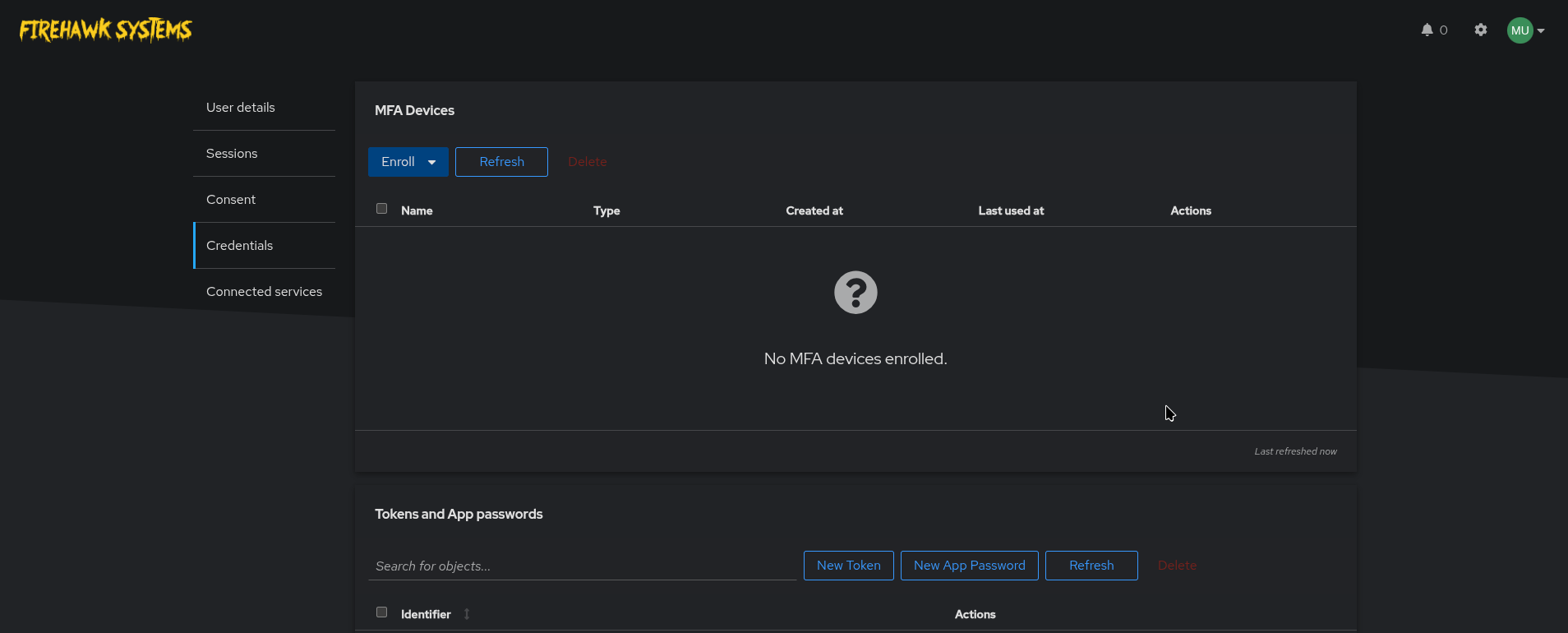](https://knowledge.firehawk-systems.com/uploads/images/gallery/2026-09/vF2JVdKcGexqzZY7-image.png) Click on Enroll. If you have a YubiKey and know how to use, select "WebAuthn device". Otherwise, select "TOTP Device" [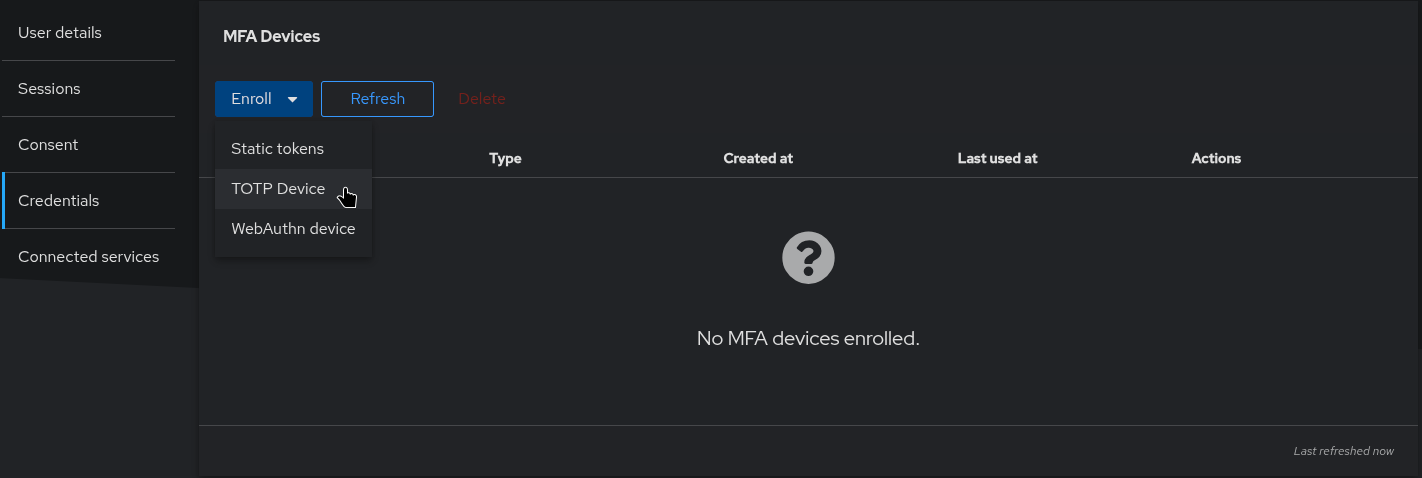](https://knowledge.firehawk-systems.com/uploads/images/gallery/2026-09/4z14G5VnGDVxdiQc-image.png) As the instructions on the page suggest, scan the QR code with any Authenticator App that supports TFA/TOTP. Our recommendation is the Bitwarden App. See here for setting up a account: [https://knowledge.firehawk-systems.com/books/bitwarden/page/account-setup](https://knowledge.firehawk-systems.com/books/bitwarden/page/account-setup) When the code has been scanned, your app will generate a 6-digit code which you should enter and click "Continue" [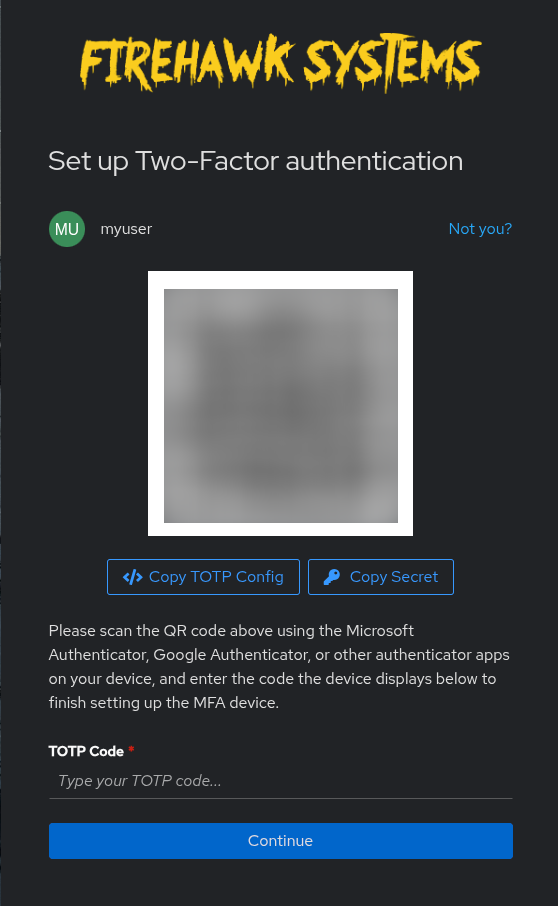](https://knowledge.firehawk-systems.com/uploads/images/gallery/2026-09/LsxrcgKDjQOiISwC-image.png) If successful, you will be returned to the Settings page #### You have completed your Two-Factor Authentication setup