Secure Account Access
Securing Access
Once logged in, Bitwarden uses insecure settings by default. It is strongly recommended to do the following steps
Session Timeouts
Setting session timeouts is essential to prevent anyone with physical access to your devices from stealing passwords
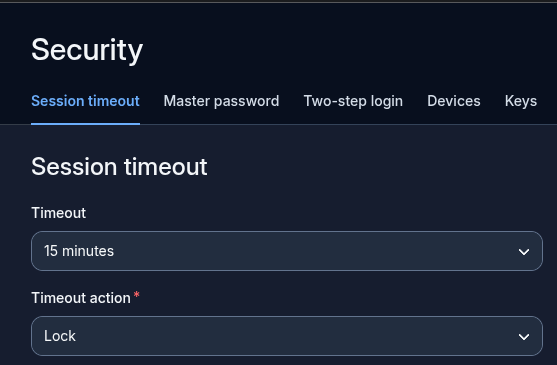
Web Vault
Once logged in, go to Settings -> Security -> Session timeout. Set the timeout to something you're comfortable with.
Browser Extension
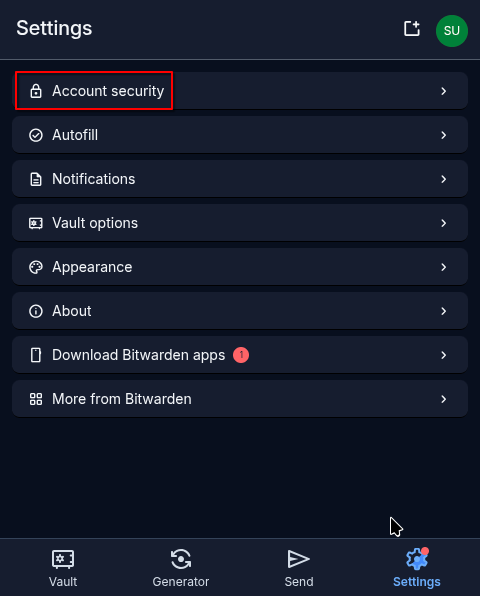
Once logged in, got to Settings -> Account security
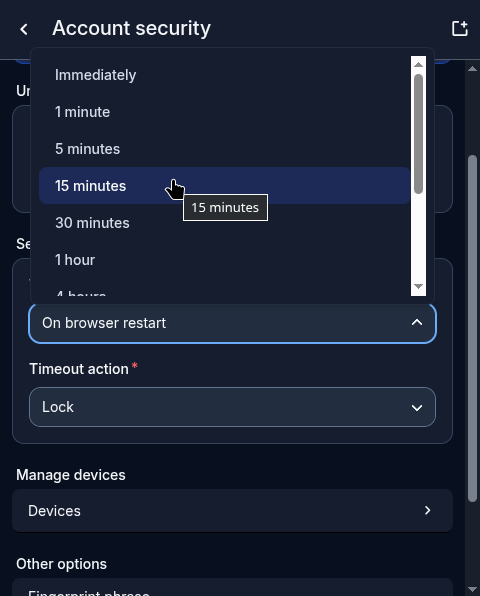
Set the Session timeout to something you're comfortable with.
Mobile App
This process is very similar to "Browser Extension". Find Account security and set the Session timeout
Two-factor Login (TFA)
Your passwords protect you, your vault protects your passwords. Protect your vault.
This step must be performed in the Web Vault at https://warden.firehawk-systems.com
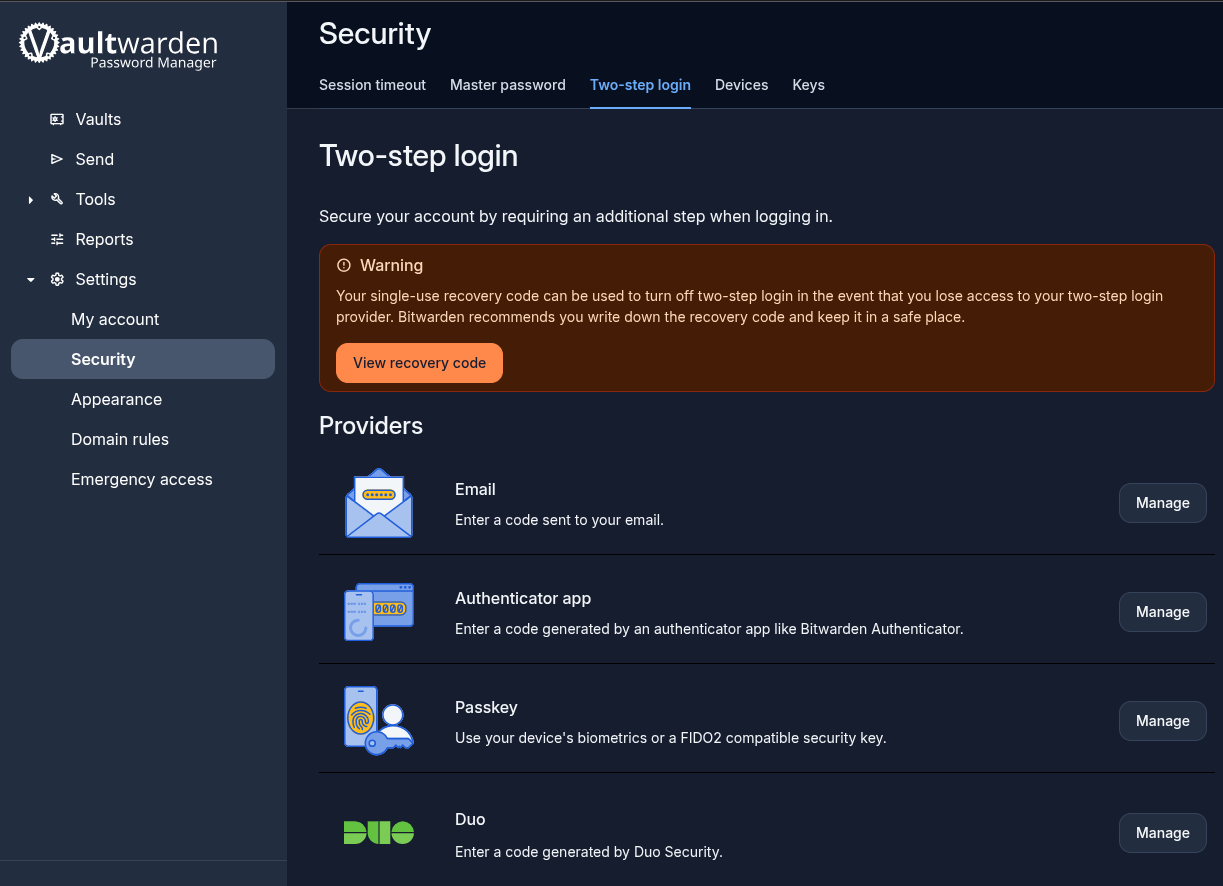
If you have a YubiKey and know how to use it, select Passkey. Otherwise select the "Manage" button next to Email. You will be prompted for your password again.
Do not select Authenticator app unless you know what you are doing, Bitwarden app should never be used for this
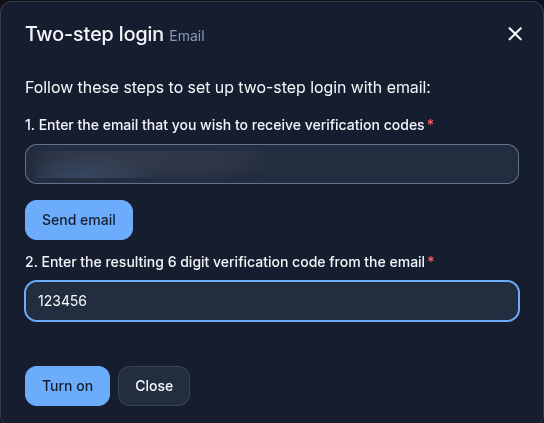
Enter the code that gets sent once 'Send email" is clicked. A green tick will appear next to Email when successful
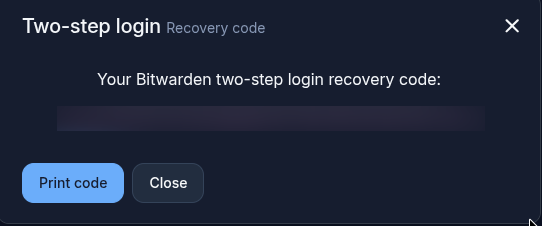
Save Recovery Code
The recovery code is required to regain access to your account if the primary TFA method fails, and should be stored somewhere safe.
In the warning box, click "View recovery code". You will be prompted for your password again.

Highlight and copy the pink text, then save somewhere safe.